Print2Accounts – user guide
Print2Accounts takes receipts to Procountor without manual keying. This guide takes you from installation to your first saved receipt and explains what the settings mean.
Contents
- What you need
- Installation
- First launch
- Saving a receipt to Procountor
- Opening a PDF without printing
- Subscription and editions
- Settings
- Tips and keyboard shortcuts
- Privacy
- Updating and uninstalling
- If something does not work
Frequently asked questions are on a separate page: Print2Accounts – frequently asked questions.
1. What you need
- Windows 10 or 11 (64-bit) and administrator rights for installation
- Procountor and the right to approve the integration for your company’s Procountor, or your company’s Procountor API key (see section 3)
- The Procountor API. Finago charges a fixed fee for it and an additional fee for each integration, in line with its API pricing – the fees apply to all Print2Accounts editions, including the Free edition, and are not included in Print2Accounts prices.
- An internet connection
- In the Basic edition, your own AI key (Anthropic Claude or Moonshot). The other editions need no key.
2. Installation
- Download the installer
Print2Accounts-Setup-<version>.exefrom vesan.ai/print2accounts. - Run the installer. Windows asks for administrator permission.
- The start screen shows what will be installed: the Print2Accounts app, the Print2Accounts PDF printer and, if needed, Microsoft Edge WebView2, which the PDF preview uses.
- Select Install. The installation briefly restarts the Windows print spooler, so print jobs in progress may be interrupted.
After installation, Print2Accounts is in the Start menu, and the printer list has a new printer Print2Accounts PDF.
If WebView2 cannot be installed (for example without an internet connection), the installation continues and tells you about it at the end. Posting works without the preview too.
3. First launch
Privacy notice
On first launch, the app tells you what data leaves your computer and where it goes. Read the notice and select Hyväksyn (I accept).
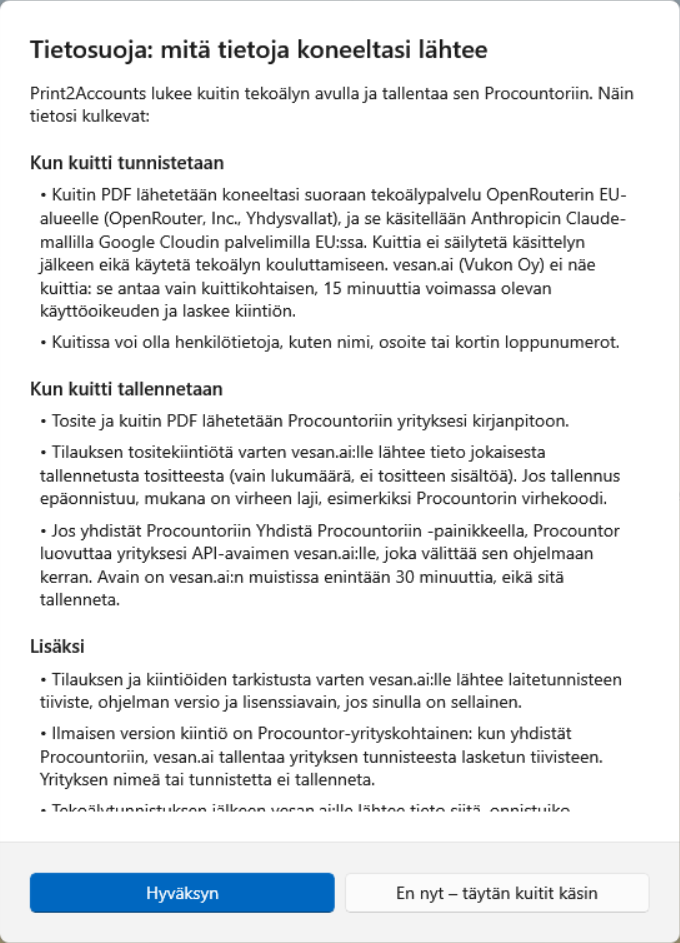
If you select En nyt – täytän kuitit käsin (Not now – I will fill in receipts manually), the app works without AI: you enter the receipt details yourself. You can accept the notice later under Asetukset → Tietoja (Settings → About).
Procountor connection
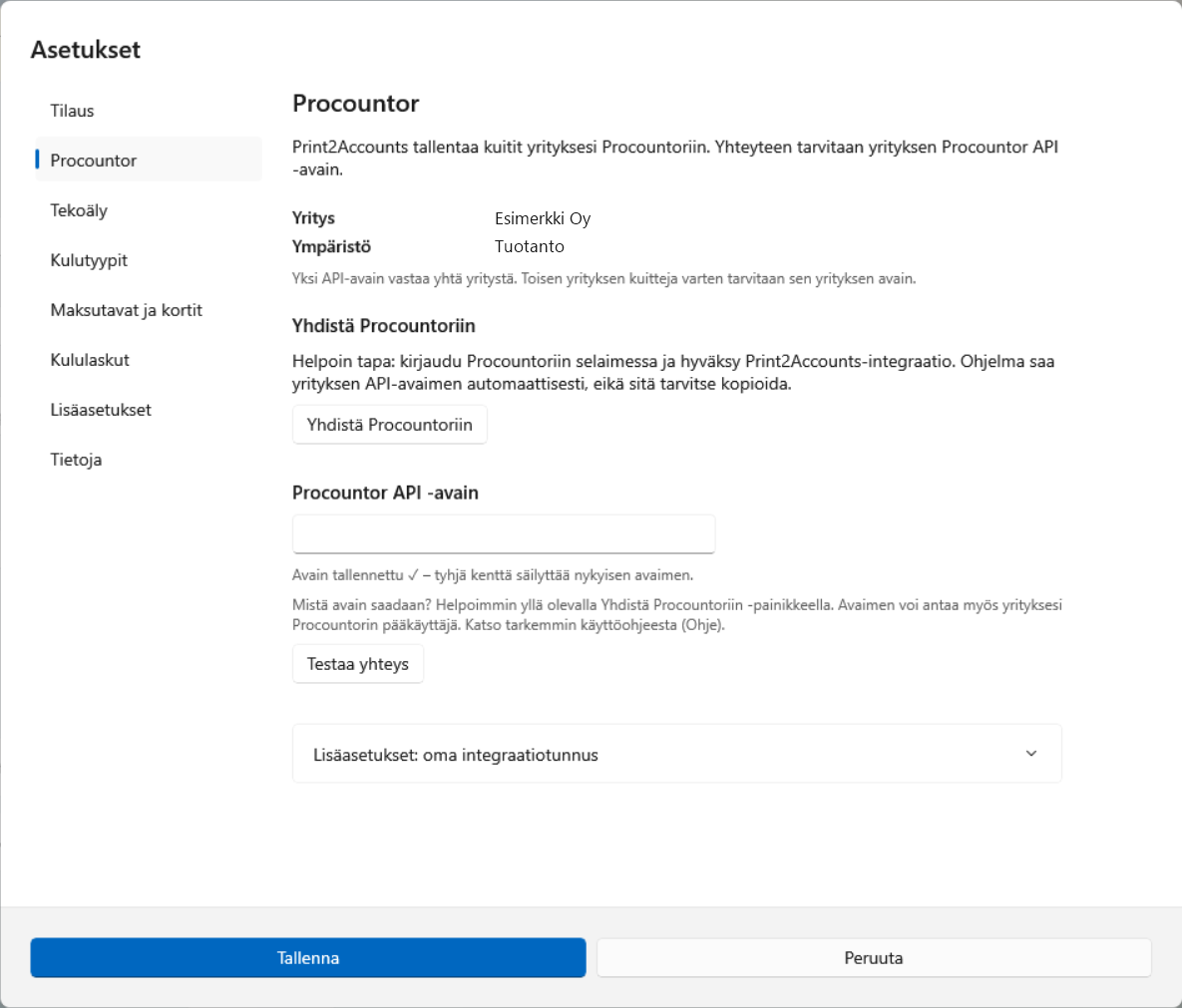
If the Procountor connection has not been set up yet, the settings open in the section Procountor. There are two ways to connect. Both enable the API interfaces in your company’s Procountor. Finago charges for them, in line with its API pricing – a fixed fee and an additional fee for each integration, in all Print2Accounts editions, including the Free edition.
Yhdistä Procountoriin (Connect to Procountor) – recommended
- Select Yhdistä Procountoriin (Connect to Procountor). Procountor opens in your browser.
- Sign in to Procountor, select the company and approve the Print2Accounts integration and its permissions.
- Return to the app. It tests the connection, saves the key and automatically fetches the VAT settings and expense accounts from Procountor. If you selected several companies in Procountor, choose one of them.
Approve the integration within 30 minutes. If the app says that connecting is not available yet, use an API key.
Entering the API key manually
The key is created in Procountor by your company’s main user:
- Enable Hallinta → Yrityksen tiedot → Käyttöasetukset → Lisätoiminnot → API-rajapinnat (Management → Company details → Usage settings → Additional features → API interfaces) and select Save.
- From the menu in the top right corner, open API-avaimet (API keys) and select Uusi API-avain (New API key). Select the user in whose name the receipts are saved, and enter the client software identifier
Print2Client. Select Save and copy the key.
In Print2Accounts:
- Paste the key into the field Procountor API key.
- Select Testaa yhteys (Test connection). If successful, the app shows the company name and automatically fetches the VAT settings and expense accounts from Procountor.
- Select Save.
The connection test also checks permissions. If the Procountor user is missing permissions, the message tells you which ones, and your company’s main user can add them.
One connection corresponds to one Procountor company.
4. Saving a receipt to Procountor
Step 1: Print the receipt
Open the receipt – for example an online shop receipt in your browser, a PDF received as an email attachment or a scanned receipt – and print it to the printer Print2Accounts PDF. Print2Accounts opens and reads the receipt. Reading usually takes 10–30 seconds.
Step 2: Check the details
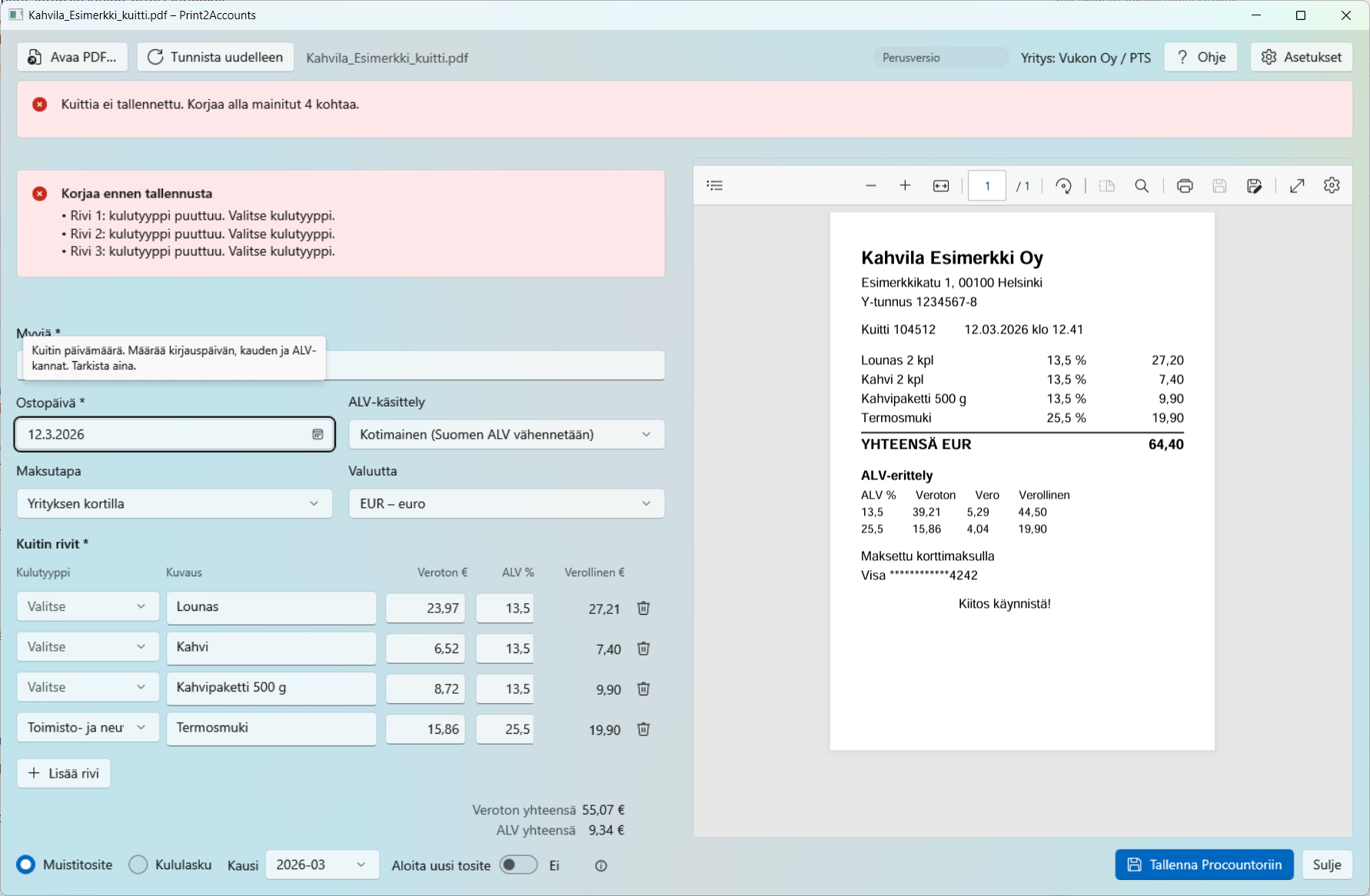
On the left are the details read by AI, on the right the receipt itself.
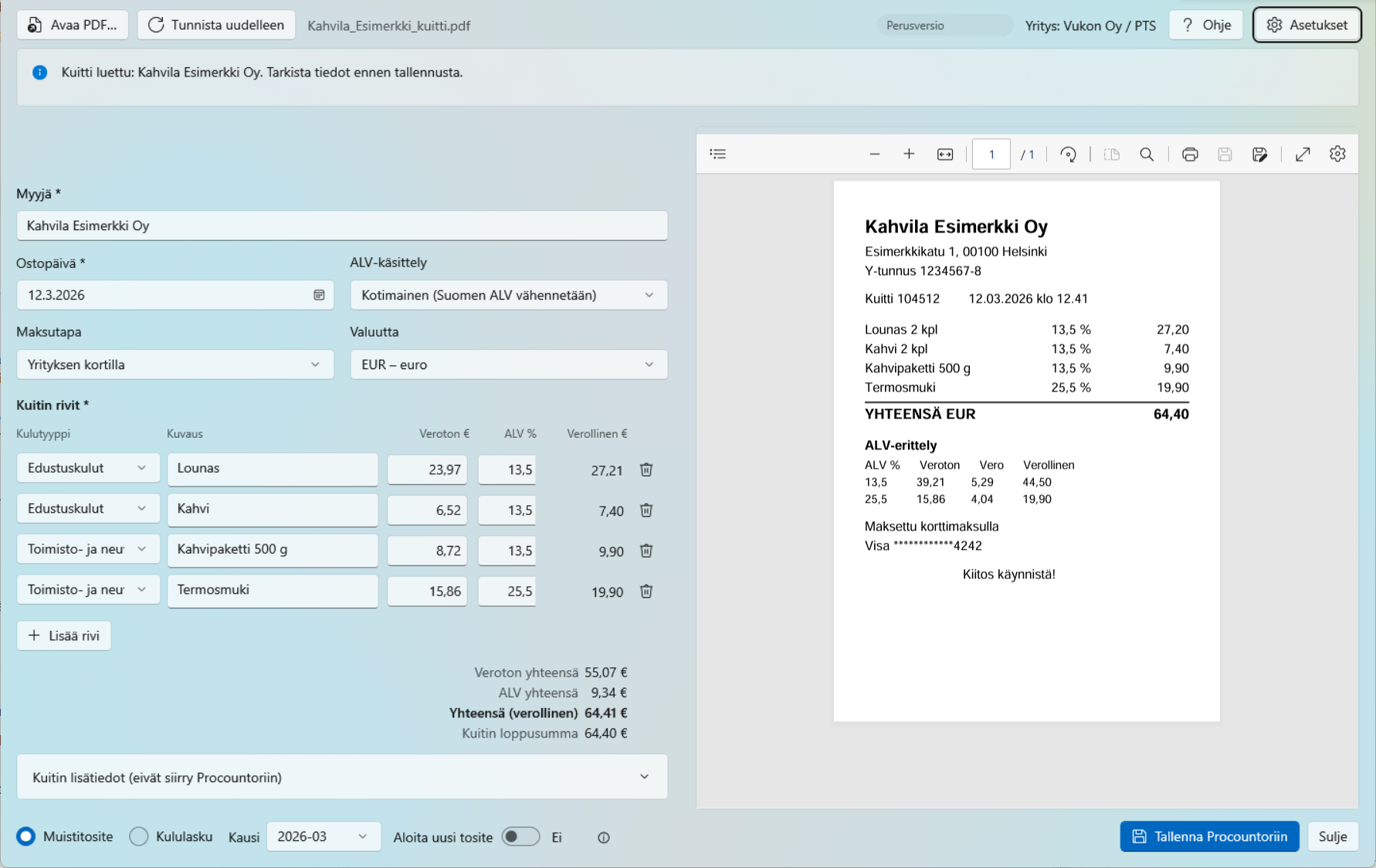
Check at least these:
| Field | What to check |
|---|---|
| Myyjä (Vendor) | The vendor’s name. Shown in Procountor at the start of each line. |
| Ostopäivä (Purchase date) | The date of the receipt. It determines the posting date, the monthly voucher and the VAT rates in force. |
| ALV-käsittely (VAT treatment) | Domestic receipt: Kotimainen (Domestic). For foreign receipts, see below. |
| Maksutapa (Payment method) | Company card or account, cash, or paid with your own money. The app remembers cards by their last four digits. |
| Valuutta (Currency) | Only euros are saved to Procountor. If the receipt is in another currency, convert the amounts to euros (for example the amount charged by your bank) and change the currency to EUR. |
| Kuitin rivit (Receipt lines) | Expense type (expense account), description, net amount and VAT percentage. The Verollinen € (Gross €) column shows the line amount including VAT, so you can compare it with the receipt. |
Below the lines you see the net total, VAT and gross total. Kuitin loppusumma (Receipt total) is the total printed on the receipt. When gross lines are converted to net amounts, the sum of the lines may differ from it by a cent or two due to rounding. The app spreads such a difference over the lines when reading the receipt, so the total usually matches the receipt total exactly (see FAQ). If the sum of the lines differs from it by more than rounding explains, the app asks you to check the lines before saving.
VAT rates are checked against the purchase date:
| Ostopäivä (Purchase date) | Accepted VAT rates |
|---|---|
| From 1 Jan 2026 | 0 %, 10 %, 13,5 %, 25,5 % |
| 1 Sep 2024 – 31 Dec 2025 | 0 %, 10 %, 14 %, 25,5 % |
| Before 1 Sep 2024 | 0 %, 10 %, 14 %, 24 % |
VAT treatment of foreign receipts:
| Option | When |
|---|---|
| Ulkomainen ALV, ei vähennettävä (Foreign VAT, not deductible) | The receipt includes another country’s VAT, for example a German hotel. The lines are booked as gross amounts without Finnish VAT. |
| EU-osto, käännetty verovelvollisuus (EU purchase, reverse charge) | A service or goods bought from an EU company without VAT, for example a software subscription. Procountor calculates and deducts the Finnish VAT. |
| EU:n ulkopuolinen osto ilman ALV:tä (Non-EU purchase without VAT) | For example, a US service without VAT. |
AI suggests the treatment based on the vendor’s country and the VAT on the receipt. If you are unsure, ask your accountant.
Step 3: Choose the voucher type
At the bottom of the window, you choose how the receipt is saved:
- Muistiotosite (Journal voucher): the receipt is added to the month’s shared journal voucher (named P2A YYYY-MM). Suitable for receipts paid with a company card or from a company account. Procountor bills by the number of vouchers, so putting many receipts in one voucher saves money. Kausi (Period) is the month whose voucher the receipt is added to; by default the month of purchase. When the Aloita uusi tosite (Start a new voucher) switch is on, a new journal voucher is created for the month. Otherwise the lines are added to the month’s unfinished voucher.
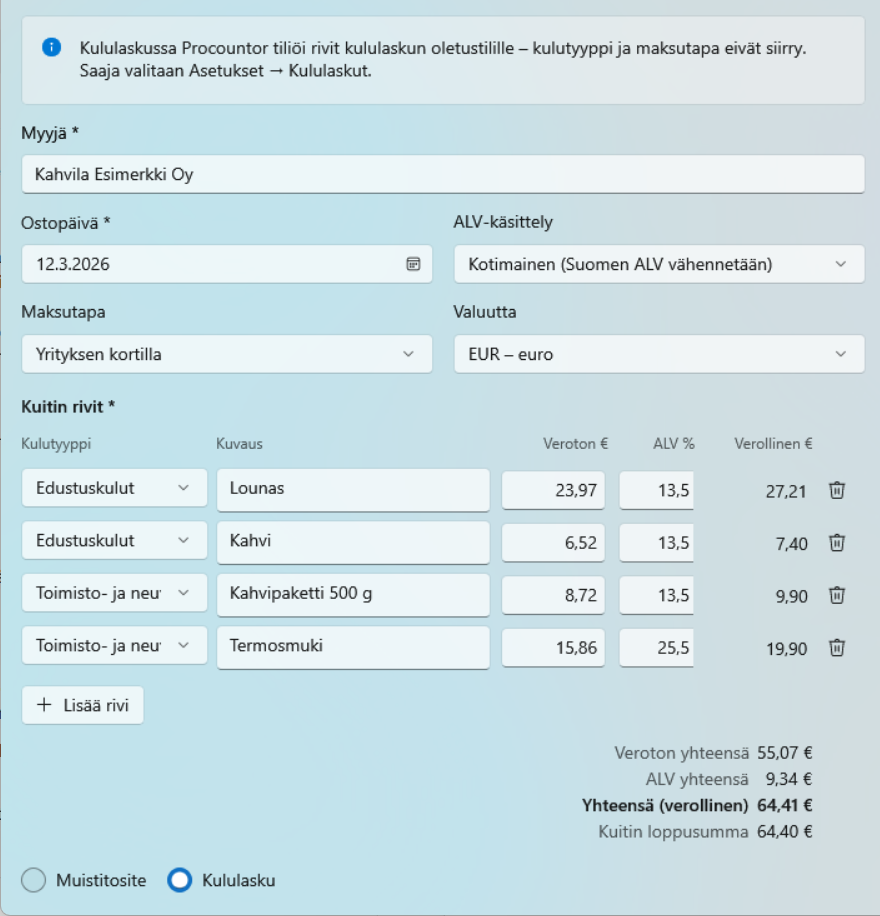
- Kululasku (Expense claim): a receipt paid with your own money that the company reimburses to the employee. The expense claim recipient is chosen under Asetukset → Kululaskut (Settings → Expense claims). In an expense claim, Procountor posts the lines to the default expense claim account, and the expense type and payment method are not transferred.
Step 4: Save
Select Tallenna Procountoriin (Save to Procountor) (Ctrl+S). Before saving, the app checks that the required details are in order. If something is missing, it is shown as a list, and nothing is sent to Procountor.
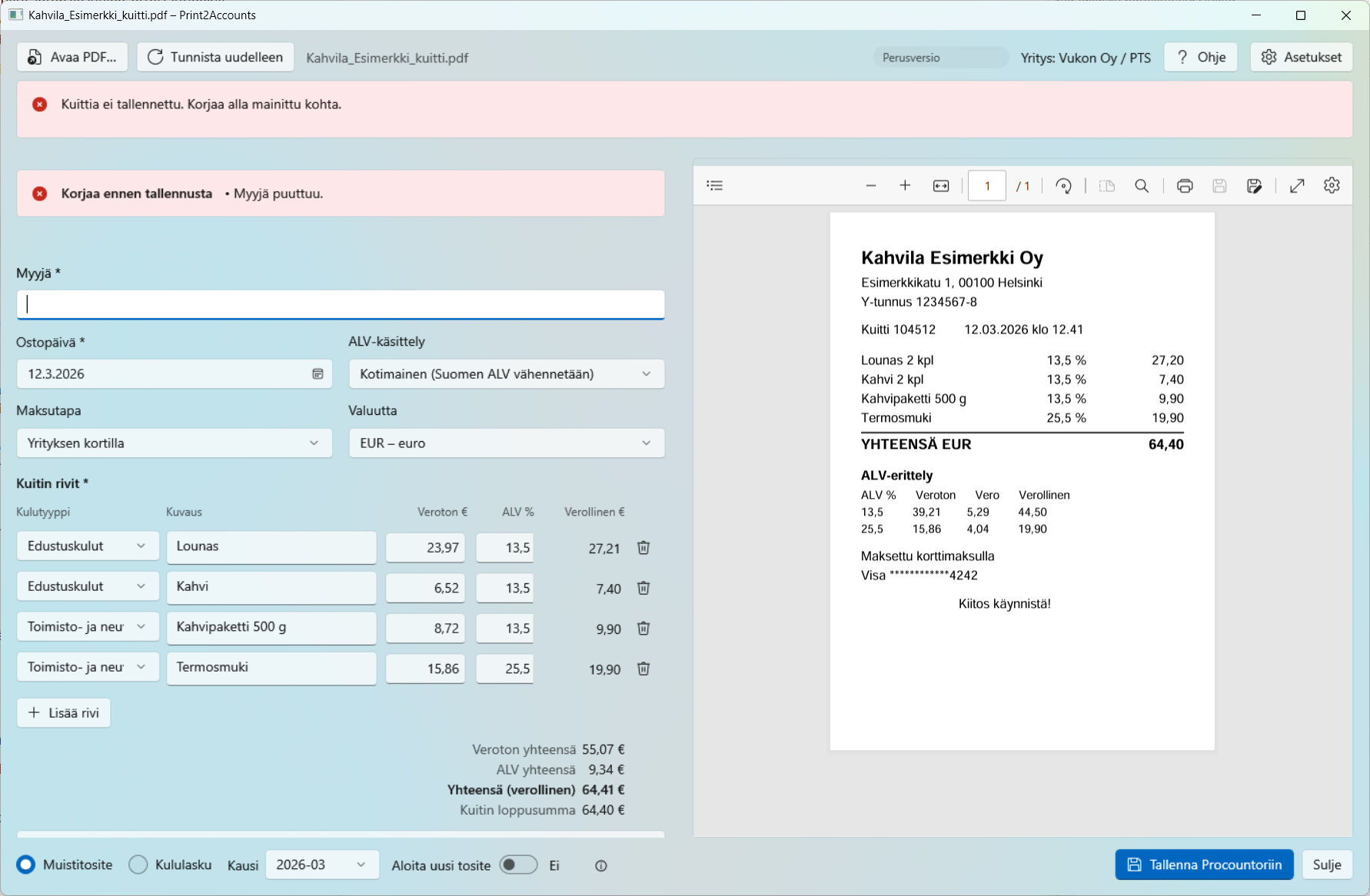
After a successful save, the app tells you which voucher the receipt went to, for example:
Tallennettu Procountoriin: P2A 2026-03, rivit 8–11. Kuitti liitettiin tositteeseen. (Saved to Procountor: P2A 2026-03, lines 8–11. The receipt was attached to the voucher.)
The voucher stays unfinished in Procountor, so your accountant can still edit it.
If the same receipt has already been saved, the app asks before saving it again: ”Tämä kuitti näyttää jo tallennetun … Tallennetaanko silti?” (This receipt looks like one already saved … Save anyway?)
If the voucher was saved but attaching the PDF failed, do not save again. Select Lähetä liite uudelleen (Resend attachment), which sends only the PDF to the voucher that has already been saved.
Once the receipt has been saved to Procountor with its attachment, its PDF is deleted from your computer when you open the next receipt or close the window. You can change this under Asetukset → Lisäasetukset (Settings → Advanced).
5. Opening a PDF without printing
When you start Print2Accounts from the Start menu, the window is empty.
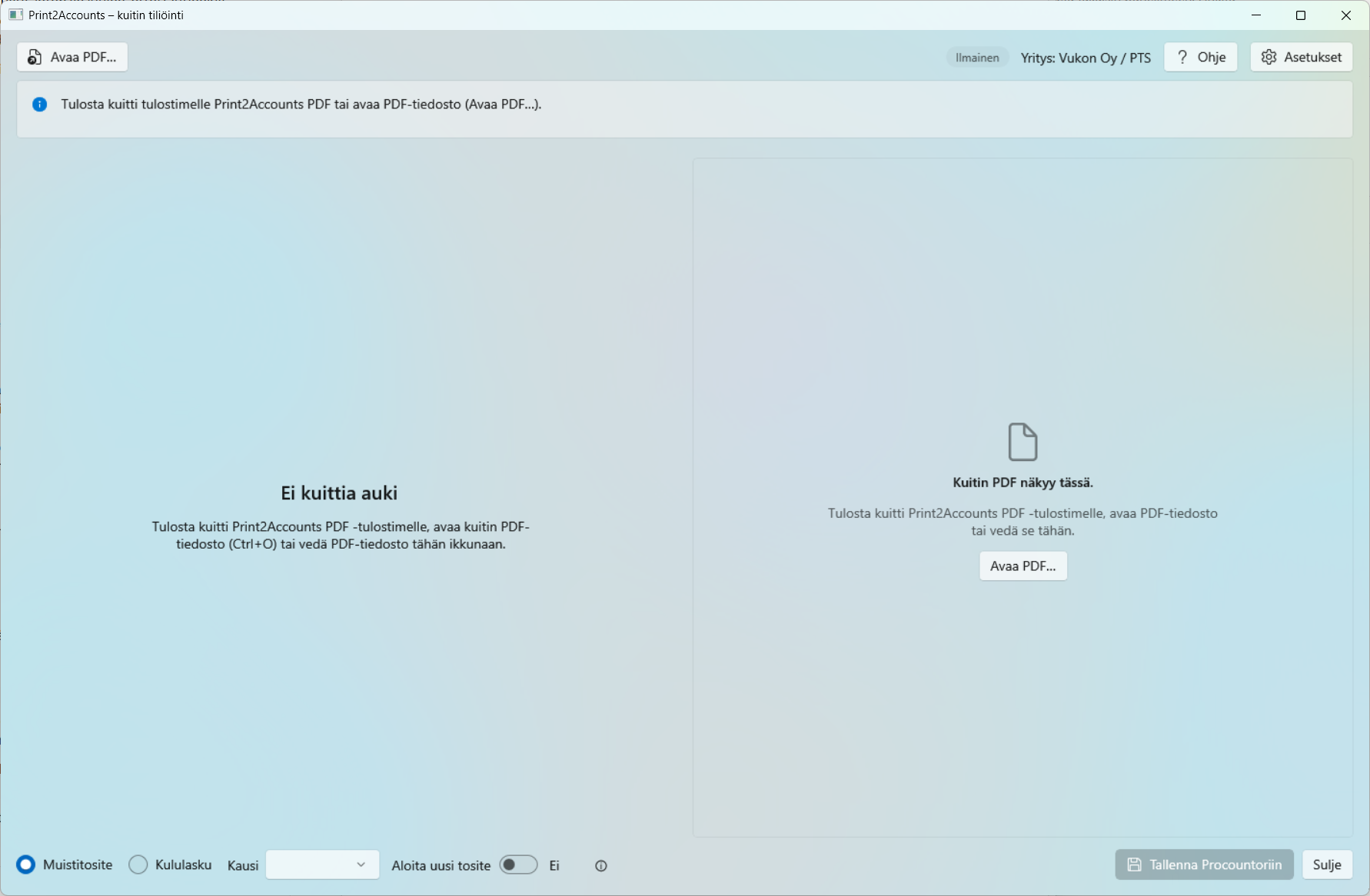
You can also open a receipt with:
- Avaa PDF… (Open PDF…) button (Ctrl+O)
- drag and drop – drag a PDF file into the window.
Tunnista uudelleen (Recognise again) reads the same receipt again, for example when you have added an AI key or the connection dropped while reading.
6. Subscription and editions
The edition and voucher quota are shown at the top of the window and under Asetukset → Tilaus (Settings → Subscription). The quota is counted in vouchers: each receipt saved to Procountor is one voucher.
| Edition | Vouchers | AI recognition | What you need |
|---|---|---|---|
| Free | First 10 vouchers free, then 2 vouchers per month (per Procountor company) | included | No licence key |
| Basic | 100 vouchers per month | with your own AI key; usage is billed directly by the provider (Anthropic or Moonshot) | Licence key and your own AI key |
| AI Included | 100 vouchers per month | included | Licence key |
| Sponsored (offered by your accounting firm) | amount agreed with the accounting firm | included | Licence key from your accounting firm. The app shows the firm’s name and logo. |
| Enterprise | per-voucher pricing | included | Licence key |
When the month’s vouchers have been used, new receipts cannot be saved to Procountor until the start of the next month. You can then switch to a larger edition. Prices are on the product page (excluding VAT). In all editions, including the Free edition, Finago also charges for the Procountor API (see section 1).
Saving without a connection to the subscription service: if the subscription service is temporarily unavailable, receipts are still saved to Procountor, up to 20 vouchers per month, provided the subscription has been checked within the last 30 days. The app reports these vouchers to the subscription service later.
The licence key has the format P2A-XXXXX-XXXXX-XXXXX-XXXXX. Enter it under Asetukset → Tilaus (Settings → Subscription) and select Tallenna avain (Save key).
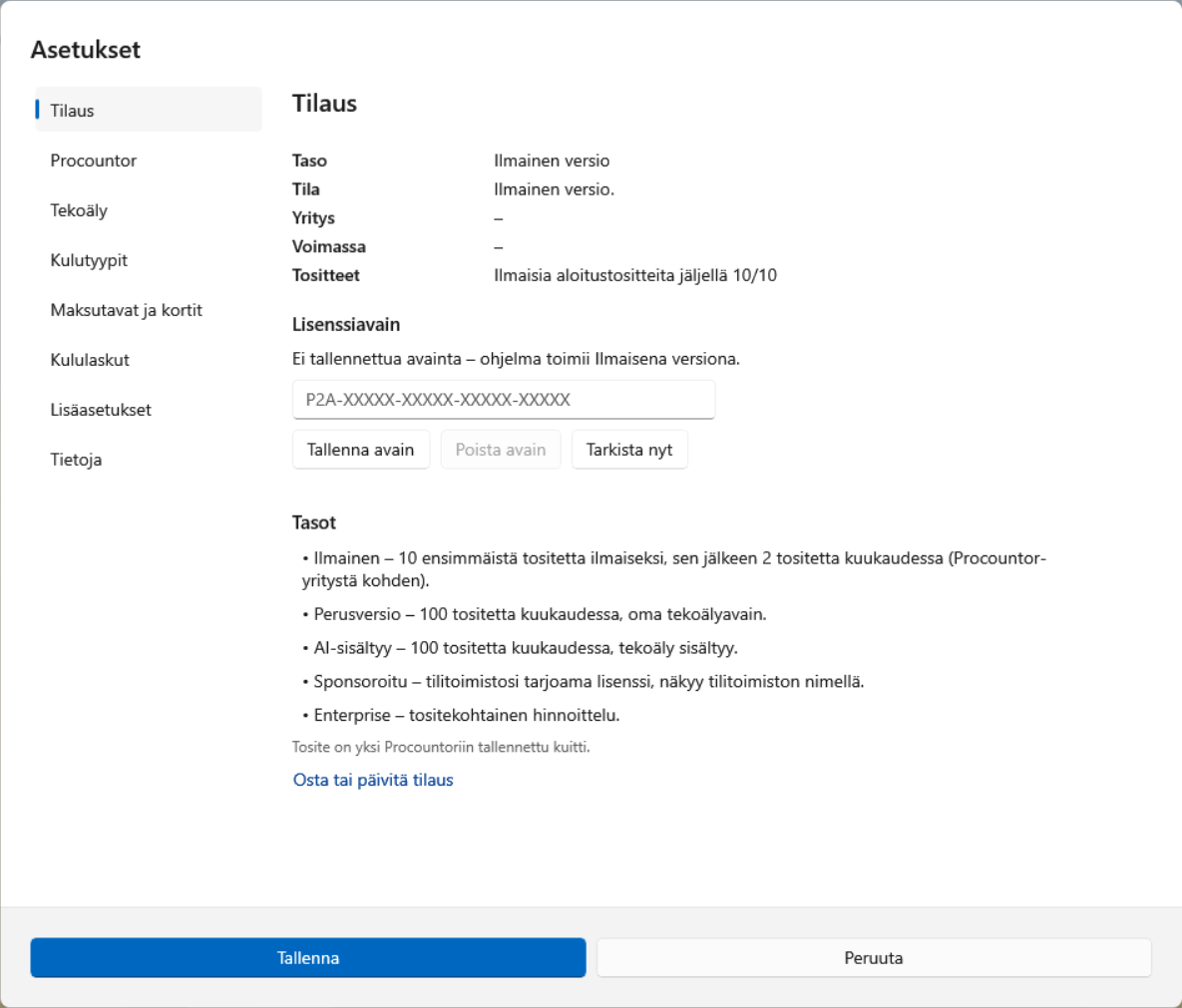
7. Settings
Open the settings with Settings, the button in the top right corner. Changes are saved with Save, the button at the bottom of the settings. If something is saved immediately, the app tells you (Tallennettu – Saved).
Tilaus (Subscription)
Edition, validity, voucher quota and licence key (see section 6).
Procountor
Connect to Procountor, the Procountor API key and the connection test (see section 3). Lisäasetukset: oma integraatiotunnus (Advanced: own integration ID) is intended only for partners who have their own Procountor integration ID.
AI
In the Free, AI Included, Sponsored and Enterprise editions, AI is ready to use and there is nothing to do on this page.
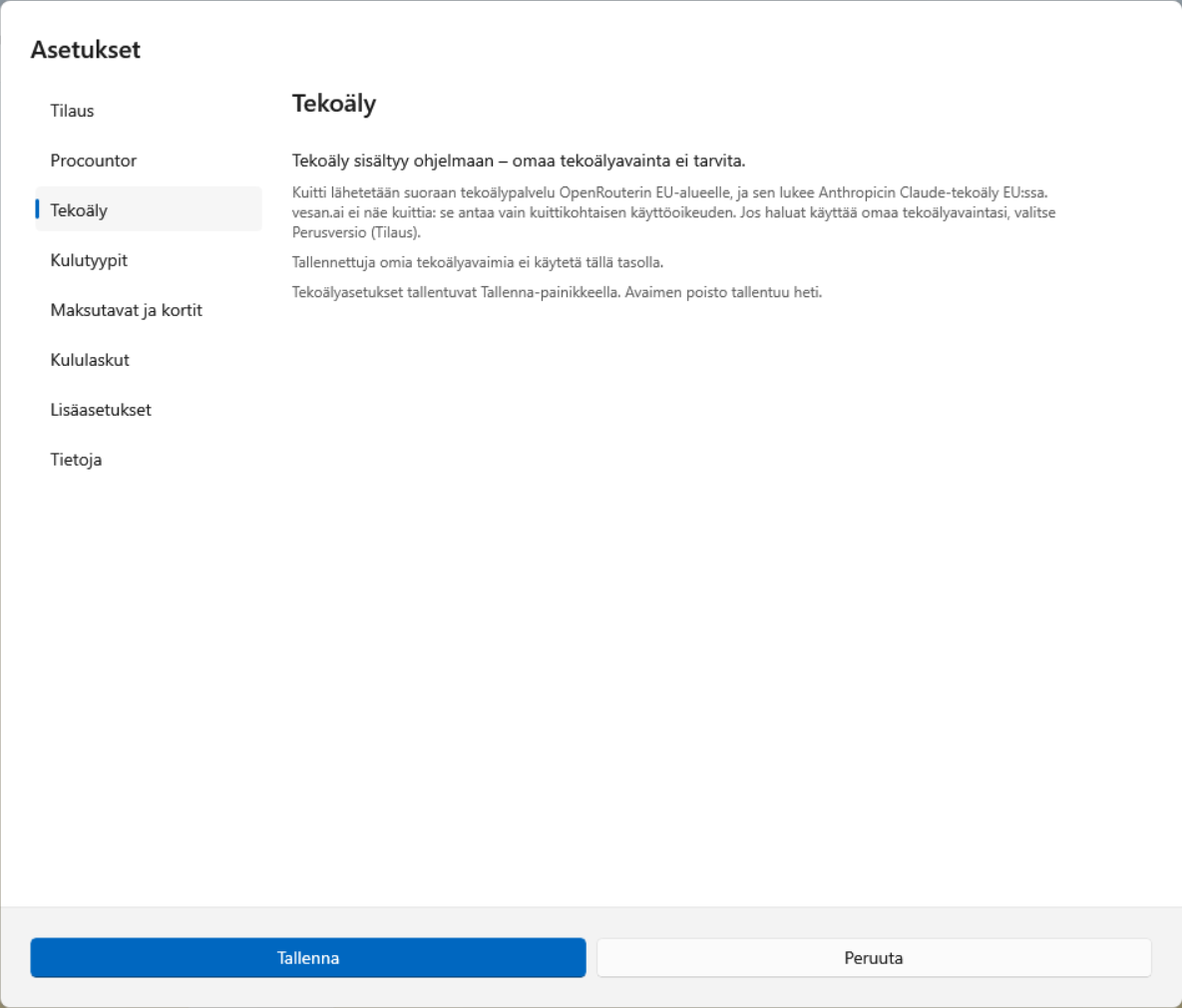
In the Basic edition, you choose the service and enter your own key:
- Claude (recommended): get an Anthropic key at console.anthropic.com (API Keys). Usage costs about 1–3 cents per receipt.
- Moonshot (optional): Moonshot’s servers are in China.
- Testaa avain (Test key) checks that the key is valid.
- Varapalvelu (Fallback service) is off by default. If you allow it, the receipt is sent to the other service when the selected one does not respond. The receipt may then move to another country.
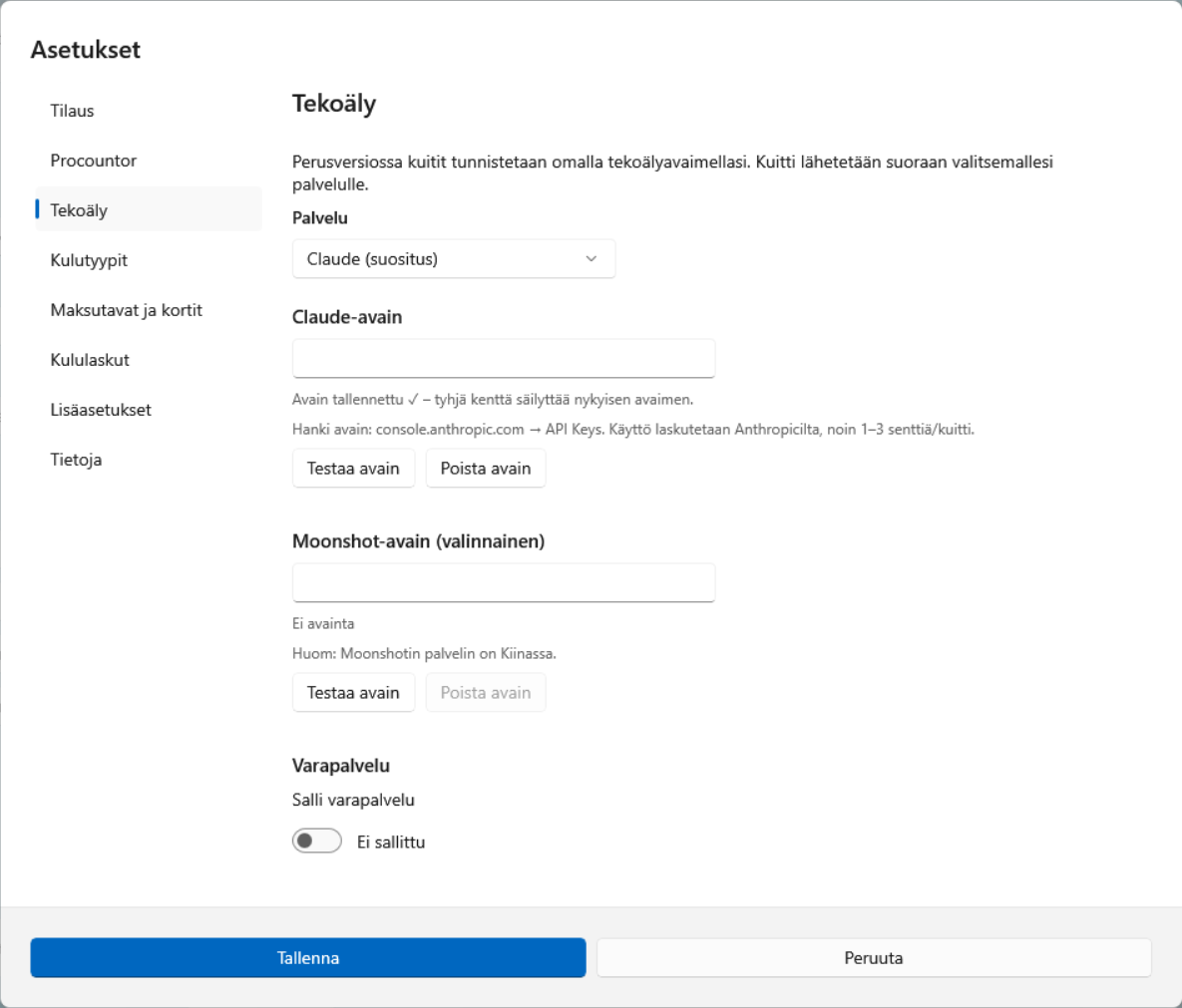
Keys are stored encrypted, only in this Windows user’s profile.
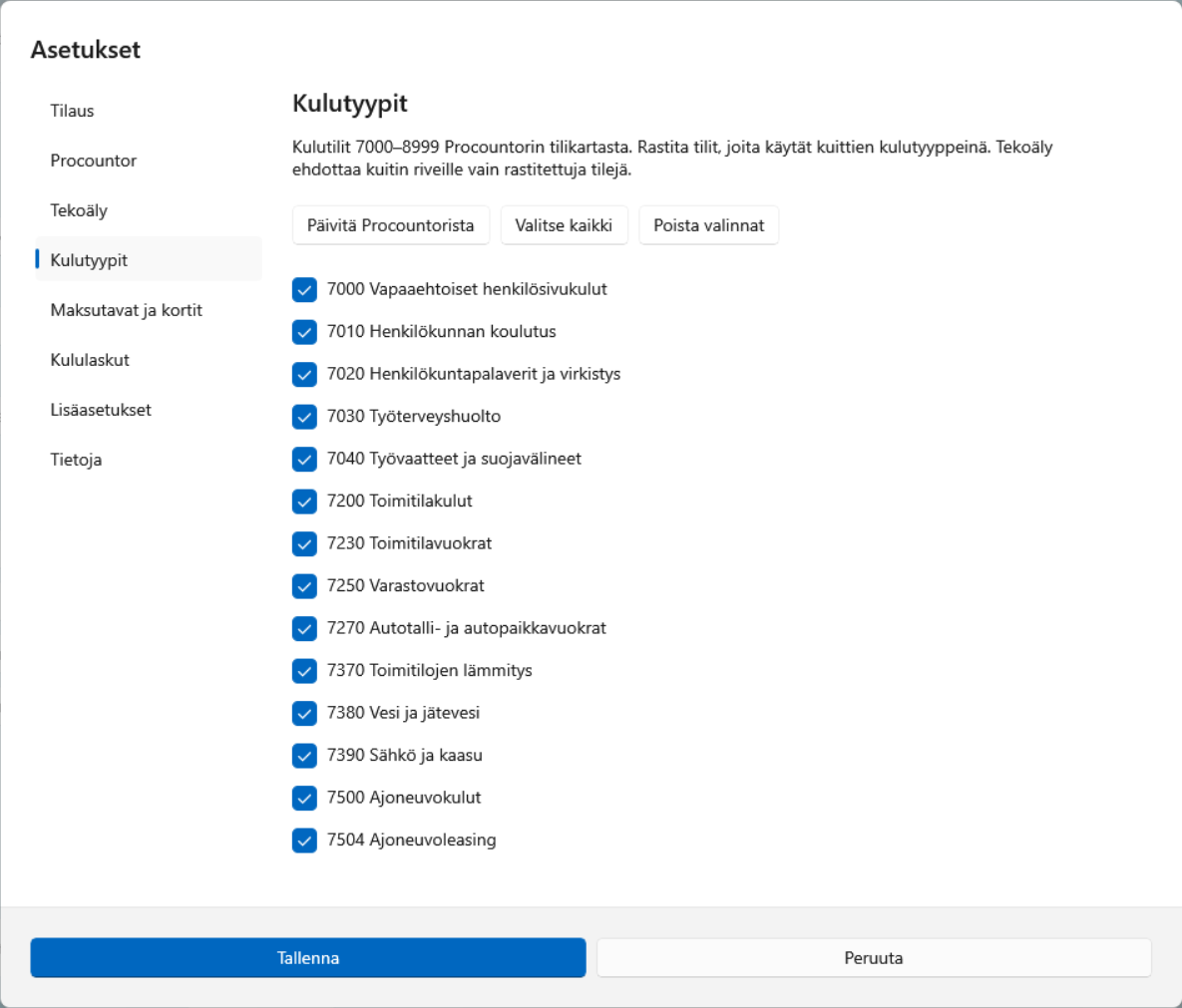
Kulutyypit (Expense types)
Expense types are the expense accounts 7000–8999 in your Procountor chart of accounts. Tick the accounts you use as expense types for receipts. AI suggests only ticked accounts for receipt lines. Päivitä Procountorista (Update from Procountor) fetches the chart of accounts again.
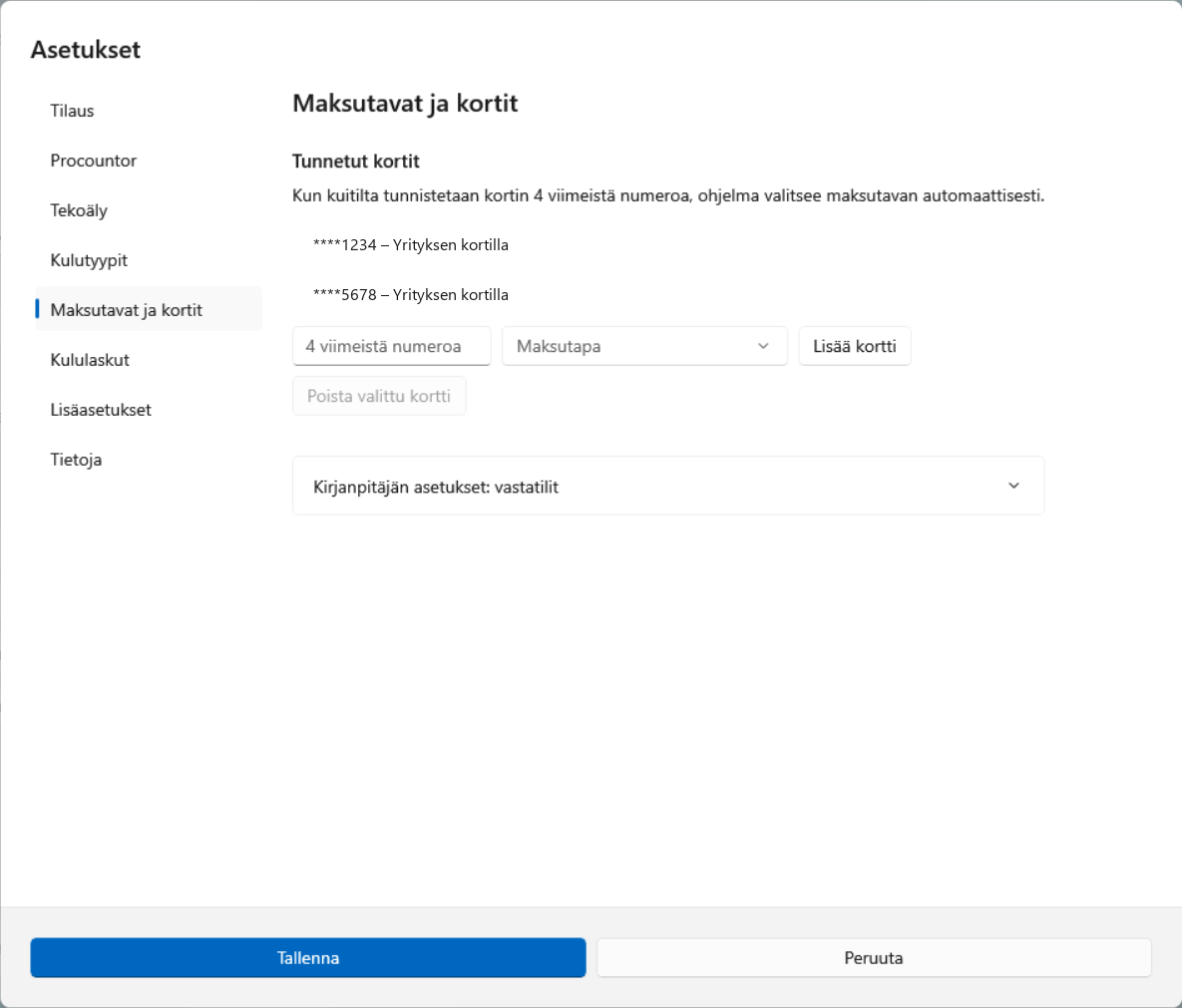
Maksutavat ja kortit (Payment methods and cards)
The app remembers cards by their last four digits and selects the payment method automatically when a card is recognised on a receipt. The full card number is never stored. Kirjanpitäjän asetukset: vastatilit (Accountant’s settings: offset accounts) determines which account each payment method is booked against. Check the account numbers with your accountant.
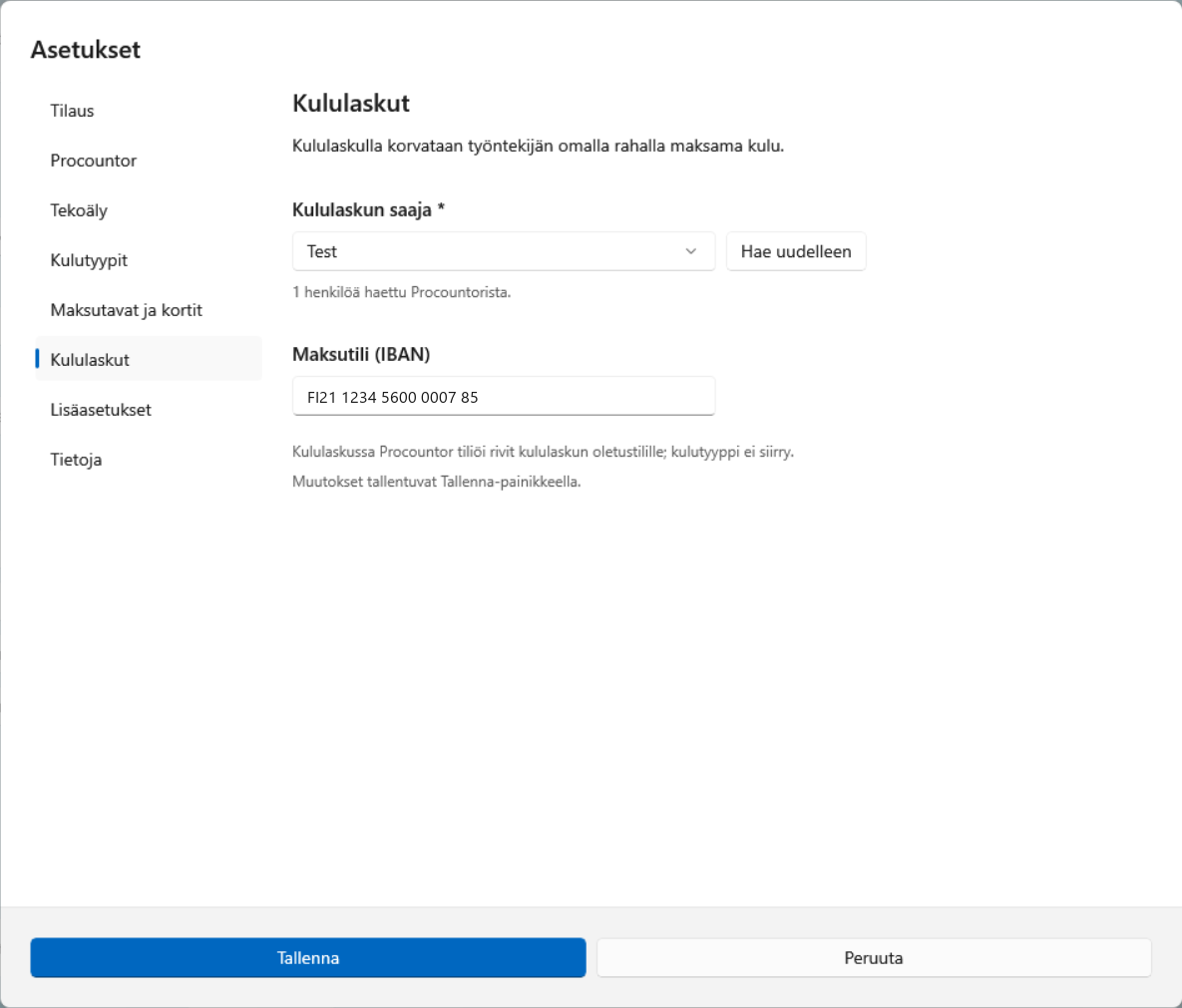
Kululaskut (Expense claims)
Kululaskun saaja (Expense claim recipient) is the person to whom the expense claim is paid. The choice is required before the first expense claim. The list is fetched from Procountor’s person register; if the recipient is not found, add them there and select Hae uudelleen (Fetch again). Maksutili (IBAN) – payment account is the account to which the expense claim is paid.
Lisäasetukset (Advanced)
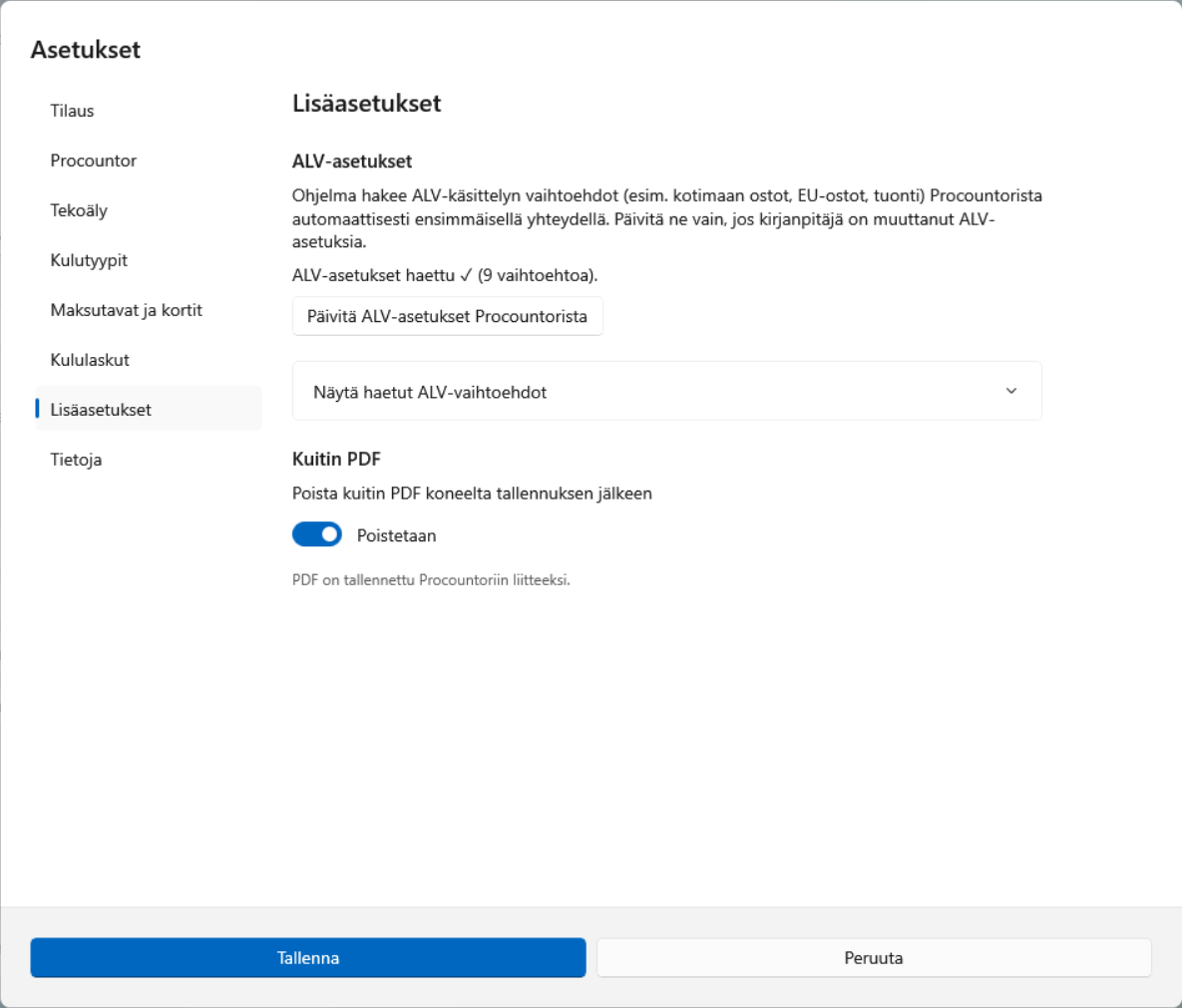
- Päivitä ALV-asetukset Procountorista (Update VAT settings from Procountor): the app fetches the VAT treatment options automatically on the first connection. Update them only if your accountant has changed the VAT settings.
- Poista kuitin PDF koneelta tallennuksen jälkeen (Delete the receipt PDF after saving): on by default, because the PDF is saved in Procountor as an attachment.
Tietoja (About)
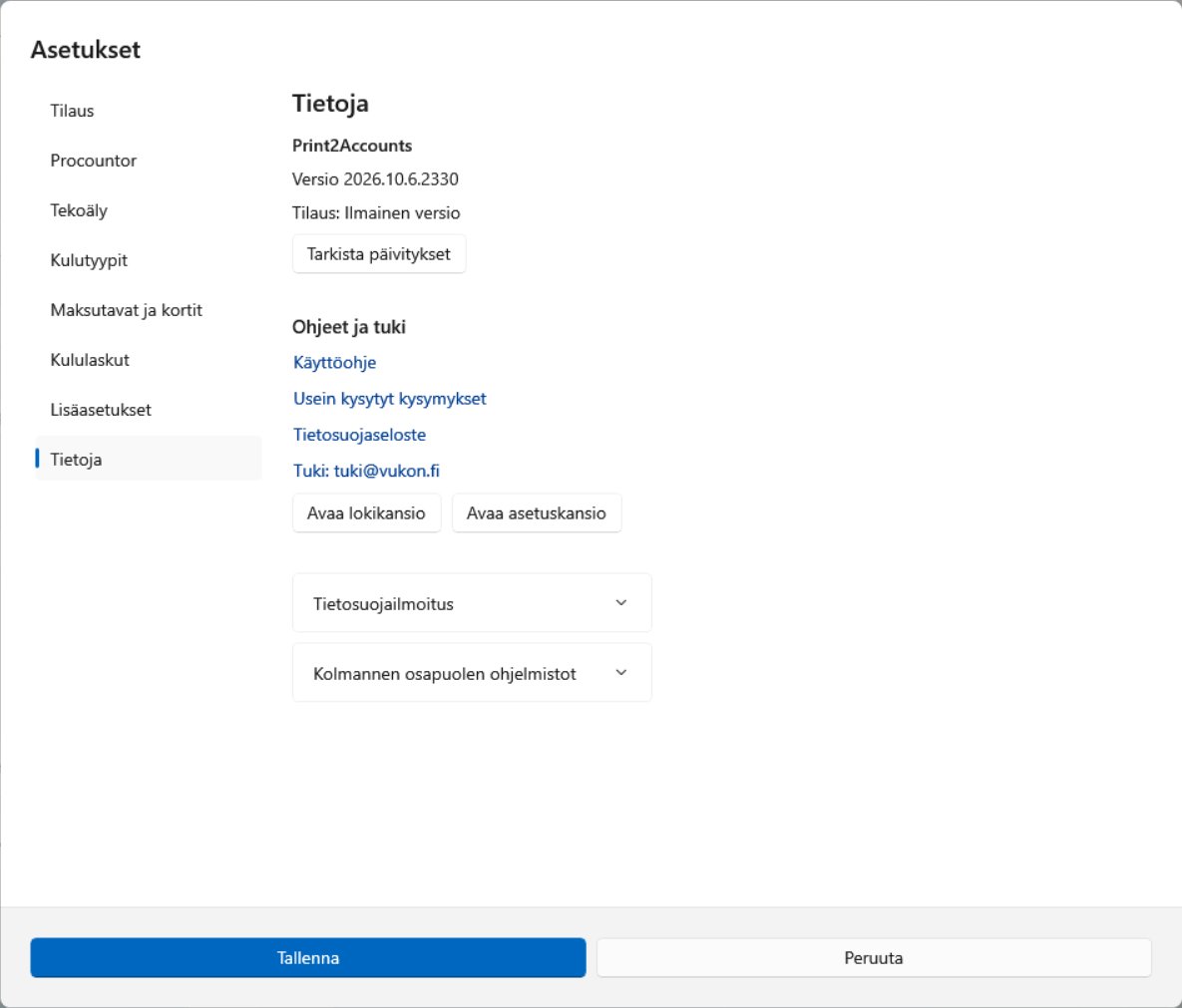
The app version, update check, links to the guide and support, the log folder and the privacy notice.
8. Tips and keyboard shortcuts
Hover the mouse pointer over a field or button to see a short explanation of what it means.
| Key | Action |
|---|---|
| Ctrl+S | Tallenna Procountoriin (Save to Procountor) |
| Ctrl+N | Add line |
| Ctrl+O | Open PDF |
| F1 | Open the user guide |
9. Privacy
- When a receipt is recognised, its PDF is sent to an AI service. In the Free, AI Included, Sponsored and Enterprise editions, it goes directly from your computer to the EU region of the AI service OpenRouter and is processed with Anthropic’s Claude model on Google Cloud servers in the EU. The receipt is not stored after processing and is not used to train AI. The subscription service (vesan.ai) does not see the receipt: it only grants a per-receipt permission and counts the quota. In the Basic edition, the receipt goes directly to the service of your choice using your own key.
- The receipt is not sent to another service without your permission (the fallback service is off by default).
- When a receipt is saved, the voucher and the receipt PDF are sent to your company’s Procountor. For the voucher quota, the subscription service only receives information about the saved voucher (the count), not its content.
- When you connect to Procountor with the button, Procountor passes the company’s API key to the app via the subscription service. The key is held in the service’s memory only until the app collects it (at most 30 minutes) and is not stored.
- For subscription checks the subscription service receives a hash of the device identifier, the app version and your licence key, if you have one. The Free edition quota is per Procountor company, so the service stores a hash derived from the company identifier (not the company name or the identifier itself). After AI recognition, it receives information on whether recognition succeeded and the number of AI tokens used, not the content of the receipt.
- Left on your computer: settings, encrypted keys and the app’s logs. The receipt PDF is deleted after saving (this setting can be changed).
10. Updating and uninstalling
Updating: the app checks once a day whether a new version is available and shows it at the top of the window. You can also check yourself under Asetukset → Tietoja → Tarkista päivitykset (Settings → About → Check for updates). Download the new installer and run it. Your settings are kept.
Uninstalling: In Windows, go to Settings → Apps → Installed apps → Print2Accounts → Uninstall. The uninstaller asks separately whether to also delete receipts and settings stored on the computer.
11. If something does not work
| Problem | What to do |
|---|---|
| The window does not open after printing | Open Print2Accounts from the Start menu and select Avaa PDF… (Open PDF…). Printed receipts are in the folder C:\ProgramData\Print2Accounts\inbox. |
| The receipt details could not be read | Fill in the details manually or select Tunnista uudelleen (Recognise again). The message tells you why, for example a used-up AI quota or a connection problem. |
| The Procountor connection does not work | Asetukset → Procountor → Testaa yhteys (Settings → Procountor → Test connection). Check the API key or reconnect with the Yhdistä Procountoriin (Connect to Procountor) button. |
| The expense type menu is empty | Asetukset → Kulutyypit → Päivitä Procountorista (Settings → Expense types → Update from Procountor) and tick the accounts you use. |
| The PDF preview does not show | Install Microsoft Edge WebView2. Posting works without the preview too. |
If the problem persists, contact support: Asetukset → Tietoja → Tuki (Settings → About → Support). Attach to your message the log files from the folder that opens with the button Avaa lokikansio (Open log folder). The logs do not contain keys.
More questions and answers: frequently asked questions. We are happy to help with setup: get in touch.